Category: How To

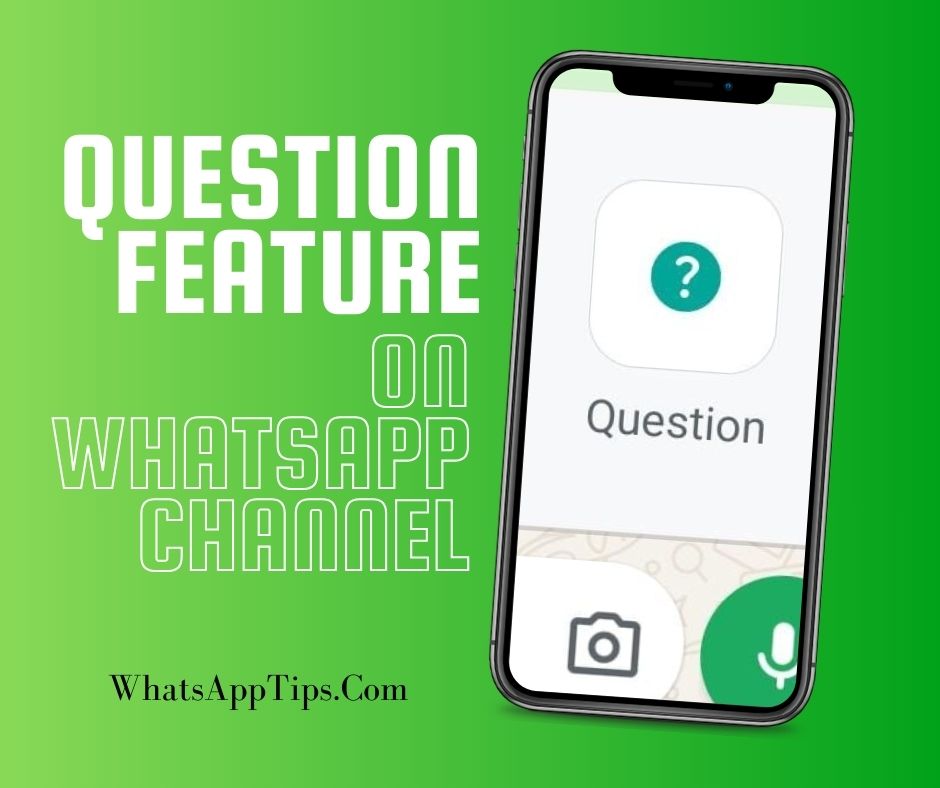
  • WhatsApp Channel Question Feature

    WhatsApp Channel Question Feature

    WhatsApp now allows channel admins to get meaningful engagement with their audience through questions and answers. This feature gives you something more to do with your WhatsApp channel.

    How WhatsApp Channel Question Feature Works

    Since inception of WhatsApp channels, there have been few ways to receive reasonable feedback from channels followers. Followers are only able to react to a post using emojis, or respond to a survey that has prefilled answers. The Question feature, rolled out in December 2025, adds a better method of feedback.

    WhatsApp channel admins can ask a question, and the followers can respond to the question by writing down an answer. This answer is relayed to the admin without directly being posted to the channel, thus protecting the privacy of the respondent. Both followers and viewers can respond. If an admin replies to a post, the response will become visible on the channel, but still maintaining the privacy of the one who posted.

    Overall, the question feature on WhatsApp channel adds to the value of WhatsApp channels by making them more interactive, while maintaining the privacy and keeping the personal nature of WhatsApp communication.

    How to use WhatsApp Channel Question Feature

    As an admin, you can use the question feature in a similar way you post an update on the WhatsApp channel.

    • Go to the WhatsApp channel.
    • At the place where you write your updates, click on the attach button
      WhatsApp channel write an update
    • Select the Question option
    • Write you question
    • Click the send/post button.
    • Once the question is posted, the admin can view responses by clicking on ‘View responses’ button.
    • The ‘View responses’ button also indicates the number of responses that have been submitted.
    • Meanwhile, followers and viewers will see the message with a prompt to respond
    • When you click to view responses, you get the option to sort between all responses, responses from your contacts, and the messages that you have already responded to.
    • Once the admin responds, both the original response by the follower/viewer and the response from admin are posted on the group.

      Enjoy using the question feature on WhatsApp channel
    • How to Stop Mentions in WhatsApp Status

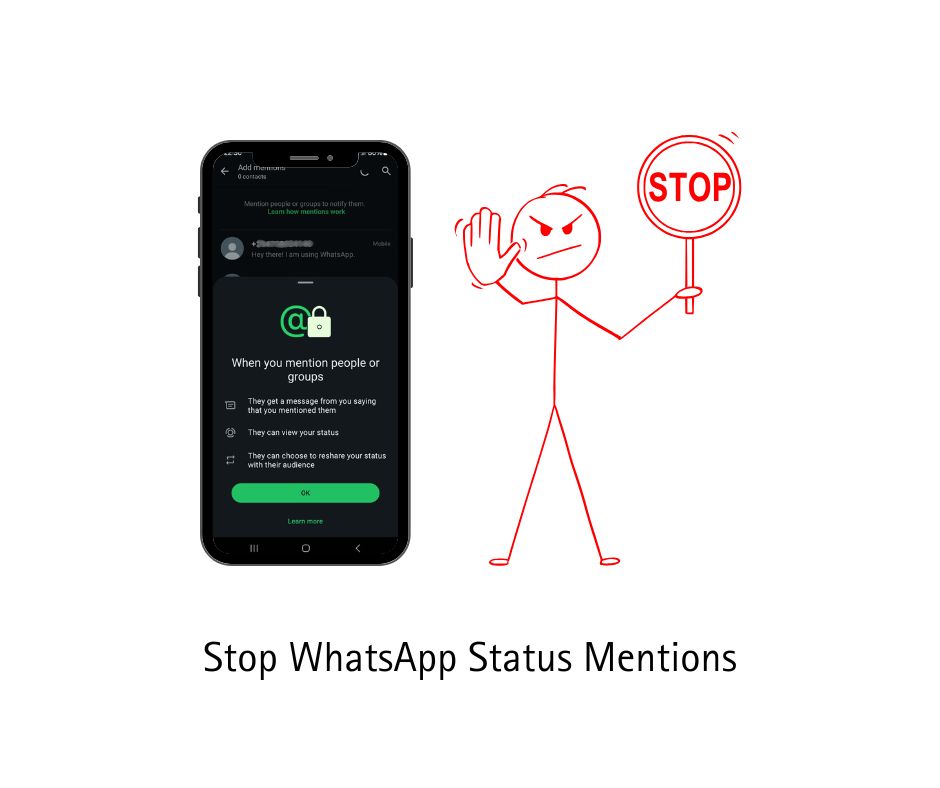
      How to Stop Mentions in WhatsApp Status

      Have you been noticing WhatsApp status updates popping up from people you don’t recognize? You’re not alone.

      WhatsApp recently introduced a new feature called ‘status mentions,’ designed to let users tag contacts in their status updates. The idea is to alert specific people to your status, making it easier to share updates with them. Sounds handy, right? Well, there’s a catch.

      The feature allows you to mention not just individual contacts but also entire WhatsApp groups. This means anyone who’s in a group with you can mention you in their status, even if you’re not personally connected. And here’s the kicker: this works even if you don’t have their number saved. One can also mention the whole WhatsApp group

      This has led to a situation where people you barely know, or don’t know at all, can push their status updates into your ‘Updates’ tab. It feels a bit like an invasion of privacy, doesn’t it? It definitely goes against WhatsApp’s usual focus on personal, private conversations.

      So, what can you do about these unwanted WhatsApp status mentions?

      Unfortunately, WhatsApp hasn’t provided a simple, direct way to disable mentions from people outside your contacts. Right now, you’re limited to a few less-than-ideal workarounds to stop WhatsApp status mentions:

      1. Block the Person: You can block the individual who’s mentioning you. However, this is a reactive solution. You’d have to block each person who mentions you, which can become tedious, especially if you’re in many groups.
      2. Leave the Group: WhatsApp suggests leaving or deleting the group where you’re being mentioned. While effective, it defeats the purpose of being in the group in the first place.
      3. Archive or Mute: You can archive the chat or mute notifications from the person mentioning you. This stops the notifications, but the status will still show up in your ‘Updates’ tab.

      An Ideal Solution to Stop WhatsApp Status Mentions

      Ideally, WhatsApp would introduce a setting to disable notifications from mentions by people who aren’t in your contacts. They already have a similar feature for broadcast messages, so it’s definitely feasible.

      They should also allow users to disable all mentions within groups, giving us more control over our privacy and keeping the platform focused on personal connections.

      Until then, we’re stuck waiting for WhatsApp to address this issue and provide a more effective way to manage these unwanted status mentions. Hopefully, they’ll listen to user feedback and make the necessary changes soon.